Overview
Attaching Squish to an Application Launched from Qt Creator
You can attach a Squish test to an application that you start from Qt Creator. This article shows how, using the addressbook example application that ships with Squish. This example application already has built-in hook implemented and this feature can be enabled with --use-builtin-hook-port=<port> or --use-builtin-hook option during the execution of the application.
To attach the test, build the application with Squish's Qt built-in hook. Start it from Qt Creator with --use-builtin-hook-port=<port>, register that port as an attachable application under test (AUT), and call attachToApplication() in the test script. This works with both Run and Start Debugging, so you can debug the application while the test drives it.
Step 1: Build the application with the built-in hook
In CMakeLists.txt, keep find_package(SquishQtBuiltinHook) near the top and add this block after qt_add_executable() and target_link_libraries():
find_package(SquishQtBuiltinHook)

# ... qt_add_executable(addressbook ...) and target_link_libraries(addressbook ...) ...

if(SquishQtBuiltinHook_FOUND)
    # MANUAL: adds the Squish include path and defines HAVE_SQUISH; main.cpp then
    # installs the hook itself via --use-builtin-hook or --use-builtin-hook-port=<port>.
    squish_qt_add_builtin_hook(addressbook MANUAL)
endif()
main.cpp calls Squish::allowAttaching() when it gets --use-builtin-hook-port=<port> (simplified excerpt):
#ifdef HAVE_SQUISH
#include <qtbuiltinhook.h>
#endif

// main(): for each command line argument
#ifdef HAVE_SQUISH
if ( arg.startsWith( "--use-builtin-hook-port=" ) ) {
    const unsigned short port = arg.mid( arg.indexOf( '=' ) + 1 ).toUShort();
    QTextStream( stdout ) << "Using built-in hook with port " << port << '\n';
    Squish::allowAttaching( port );
    continue;
}
#endif
Step 2: Point CMake to the Squish package
CMake finds the hook module only when SquishQtBuiltinHook_DIR points to the Squish package.
- Go to Projects > Build Settings. On the Initial Configuration tab, select Add > Directory, set Key to
SquishQtBuiltinHook_DIR, and set Value to<SQUISHDIR>/lib/cmake/SquishQtBuiltinHook. - Leave Additional CMake options empty on both tabs.
- Select Re-configure with Initial Parameters.
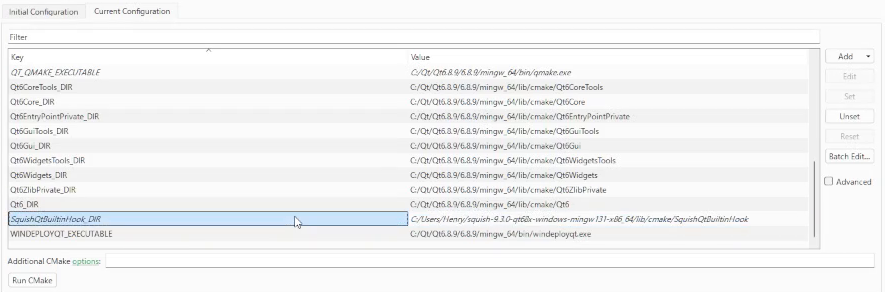
Figure 1. SquishQtBuiltinHook_DIR in the CMake configuration. Italics mark values that come from the Initial Configuration.
Step 3: Set the run settings
The application listens for Squish only when it gets the port argument and can find the Squish libraries. Go to Projects > Run Settings and set:
- Command line arguments:
--use-builtin-hook-port=9987 - Environment: add
SQUISH_PREFIX, and add the Squishbinandlibfolders toPATH:
SQUISH_PREFIX=C:\Users\Henry\squish-9.3.0-qt68x-windows-mingw131-x86_64
PATH=C:\Users\Henry\squish-9.3.0-qt68x-windows-mingw131-x86_64\bin;C:\Users\Henry\squish-9.3.0-qt68x-windows-mingw131-x86_64\lib;${PATH}
Keep ${PATH} in the value. Replacing PATH removes the Qt and MinGW folders, and the application may fail to start.
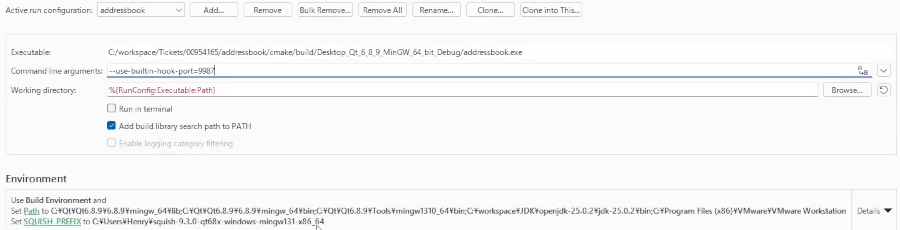
Figure 2. Run Settings in: Command line arguments the port argument, and the Environment summary with PATH and SQUISH_PREFIX.
Step 4: Register the attachable AUT
squishserver connects to the application through the name and port registered here. Run this once from <SQUISHDIR>\bin, with the same port as in step 3:
squishserver --config addAttachableAUT addressbook localhost:9987
In the Squish integrated development environment (IDE), the same setting is under Server Settings > Manage AUTs > Attachable AUTs.
Step 5: Create the test case
The test script attaches with attachToApplication() and never calls startApplication(). The sample suite suite_py (Python, Qt toolkit) has one test case, tst_case1:
import names

def main():
    test.log("Hello World")
    attachToApplication("addressbook")

    mouseClick(waitForObject(names.address_Book_File_QTableWidget), 243, 106, Qt.NoModifier, Qt.LeftButton)
    clickButton(waitForObject(names.address_Book_New_QToolButton))
    sendEvent("QCloseEvent", waitForObject(names.mainWindow))

    test.breakpoint()
- The name passed to
attachToApplication()must match the AUT name registered in step 4.
Step 6: Start the application and run the test
Start the application from Qt Creator first; the test then attaches to the running process.
Run the application. In Qt Creator, select Run. Application Output shows Using built-in hook with port 9987.
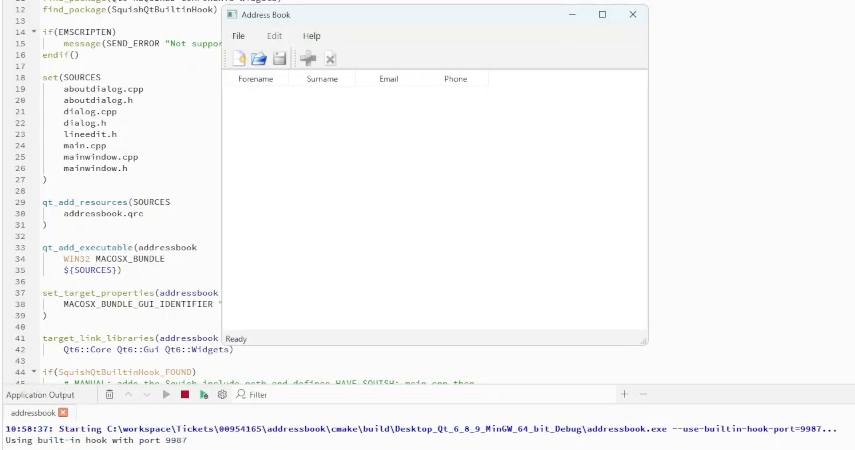
Figure 3. Application Output after Run: the hook listens on port 9987.
Run the test case. In the Squish IDE, run tst_case1. The test attaches, clicks through the application, and stops at test.breakpoint().
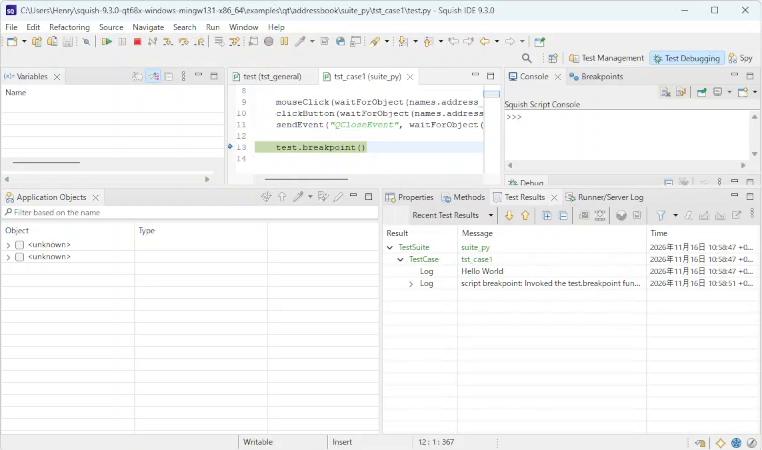
Figure 4. The test attached, ran its steps, and stopped at test.breakpoint().
Optional: debug the application at the same time. Start it with Start Debugging of Startup Project instead of Run. The test attaches the same way.
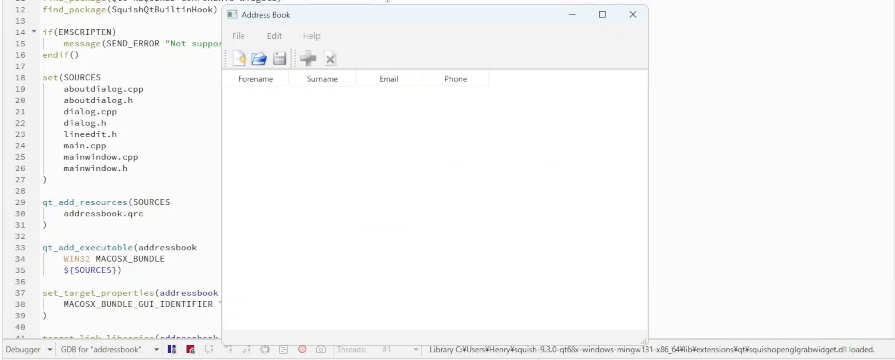
Figure 5. Under the debugger, The test attaches the same way.
The 93-second recording below shows the whole procedure, from the Qt Creator settings to the attached test run and the run under the debugger.
If no player appears above, open the recording in a video player.